
font finder by image
Upload a screenshot, logo, or photo and instantly discover matching fonts with fast, accurate AI detection. Find Font is an advanced font finder platform built for creators who want to use a reliable font finder by image solution to quickly find font styles from screenshots, social posts, branding assets, and marketing designs. If you need to find font from image files or simply find a font that matches your design inspiration, our AI engine delivers fast results.
Smart Detection
Identify Fonts Instantly with AI
Instant Font Detection
Find Font helps creators find that font in seconds with an advanced image font finder powered by AI. You can find a font from image uploads, find font by photo references, or use our font finder free experience to identify premium typography styles instantly. Many creators also prefer our font finder from image free workflow.
Smart Font Matching
If you are learning how to find a font, our platform explains how to find a font from an image using simple drag-and-drop uploads. Similar to professional font finder tool which identify fonts by image, It allows users to find font free, quickly find out font styles, and confidently find out font type details.
Easy Image Upload
Users can instantly find the font name from logos and posters, learn how find font workflows, or discover how to find a font from a picture for web and print designs. Whether you want to how to find font from image uploads or simply find out font name information, our simple upload system makes the process effortless.
AI Accuracy
Advanced Font Recognition Technology
Find Font combines advanced recognition technology with a modern font find engine and a smart font from image finder experience. Designers searching for an ai font finder can use our tool to find a font from a picture, quickly find the font from image references, and even find the font used to make these stamps in historical or creative designs.
Quick Results
Why Designers Choose Find Font
Built for creators who need fast, accurate font identification with a clean and simple experience.
Advanced AI Font Detection
Accurate Font Discovery
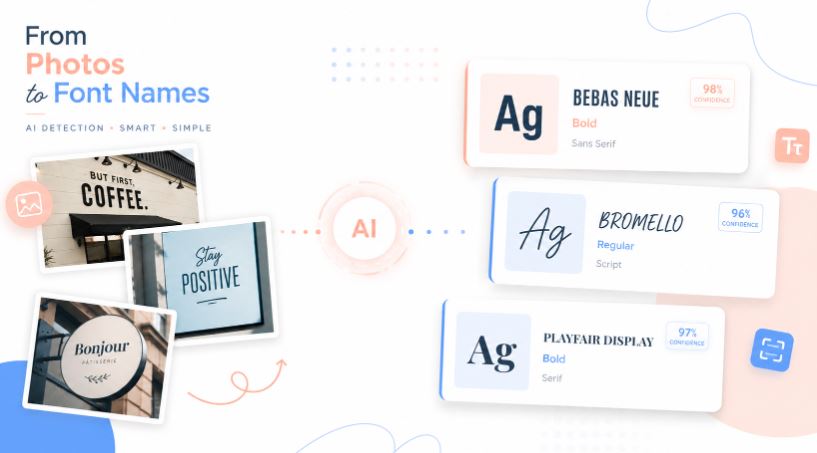
Our intelligent recognition system also supports google font finder workflows and helps creators find font in image files with exceptional precision. Whether you searched for the playful finding nemo font style or explored a font finder adobe alternative, our tool delivers accurate recommendations every time.
Perfect Match
Find Perfect Font Matches in Seconds
Upload an image and instantly discover accurate font matches with fast AI-powered recognition technology.
AI-Powered Typography Recognition
Find Fonts from Images, & Logos in Seconds
Our platform also supports users searching for finde font tools, simplifies the process of finding a font, and improves productivity with a reliable font finder by photo workflow. Whether you use the font finder copy paste tool for typography research, rely on the font finder from text engine, or prefer a smart font finder with image solution, Find Font helps you identify typography faster than ever.
Smart Visual Font Search
Instant Font Match
Find Font works as an online font finder that helps creators find font based on image references instantly. Users can find font online, use our smart find fonte recognition engine, organize projects with find my fonts, and instantly find this font from image uploads.
Start Finding Fonts Today
Turn any image into a font discovery experience with our powerful AI font finder. Whether you are a designer, developer, marketer, or content creator, quickly identify fonts from logos, screenshots, posters, and social media graphics with fast, accurate, and easy-to-use detection technology.
FAQ’s
What is a Find Font AI?
Findfont.ai is an advanced AI-powered font finder that helps users identify fonts from images, screenshots, logos, posters, PDFs, and other design assets. Simply upload an image, and the AI analyzes the typography to find matching fonts or visually similar alternatives in seconds. Instead of manually searching through thousands of font libraries, designers, marketers, and creators can quickly discover the fonts used in their favorite designs.
How to find a font?
Finding a font is easy with an AI-powered font finder. Simply upload a screenshot, logo, poster, or design sample, and our system analyzes the text style to identify matching fonts. This helps designers, marketers, and creators quickly discover typography used in images.
How to find a font from an image?
To find a font from an image, upload a clear image containing readable text. Our AI scans the letter shapes, spacing, and typography characteristics to identify the font or suggest visually similar alternatives. For best results, use images with large text and simple backgrounds.
How to find out what font is used?
If you want to find out what font is used in a logo, advertisement, social media graphic, or website screenshot, simply upload the image to our font finder tool. The AI compares the text against thousands of fonts and returns the closest matches in seconds.
How to find a font name?
To find a font name, upload an image containing the text you want to identify. Our font recognition engine compares the characters against a large font database and returns likely font names along with similar font recommendations.
How to find a certain font?
If you’re looking for a certain font from a logo, brand design, social post, or website screenshot, upload the image to our AI font finder. The system analyzes the typography and helps identify the exact font or the closest available matches.
How to find font type?
To find a font type, upload an image and let our AI analyze the typography. The tool can identify whether the font belongs to categories such as serif, sans-serif, monospace, script, display, or decorative fonts while also suggesting specific font names that match the design.
How to find font in PDF?
You can find fonts in a PDF by checking the document properties in PDF software such as Adobe Acrobat. If the PDF is flattened or only available as an image, upload a screenshot to our font finder and let AI detect the font automatically.
How do you find a PDF font on Adobe Mac?
On Adobe Acrobat for Mac, open the PDF and choose File → Properties → Fonts. This displays the fonts embedded in the document. If you only have a screenshot from the PDF, you can upload it to our font finder and identify the font visually.
How to find good fonts on CapCut?
To find good fonts on CapCut, browse the app’s font library and experiment with styles that fit your content. If you see a font in another video or design that you like, upload a screenshot to our font finder to identify the font and discover similar alternatives for your projects.
Where can I find all the fonts I installed?
Installed fonts are stored in your operating system’s font directory. On Windows, they can be viewed in the Fonts settings panel. On macOS, open Font Book to see all installed fonts. If you’re unsure about a font’s identity, upload a sample image to our font finder for instant recognition.
Where can I find the font file?
Font files are usually stored in your system’s font folder. Windows commonly uses the Fonts directory in the Control Panel, while macOS manages fonts through Font Book. Font files typically use formats such as TTF, OTF, or WOFF.