How to You Find a PDF Font on Adobe Mac?
Learn how to you find a PDF font on Adobe Mac using simple methods, image uploads, and accurate font detection tools.
If you want to know how to you find a PDF font on Adobe Mac, the fastest method is to inspect the PDF in Adobe Acrobat and then use an image-based font finder when the font name is missing or embedded incorrectly. Uploading a screenshot of the text to Find Font AI can help identify fonts from PDFs in seconds.
I realized something strange the first time I tried identifying a font inside a PDF on my Mac. The document looked clean. Professional. Almost too polished. But the font? Completely invisible in the places that mattered.
Adobe Acrobat showed fragments of information. Some fonts appeared as subsets. Others looked encrypted behind names like “ABCDE+Helvetica.” It felt less like opening a document and more like decoding a locked archive from another decade.
That’s when the problem became obvious.
Most people are not searching for fonts because they are curious. They are searching because something is already broken. A client lost the original design file. A professor sent lecture slides without branding details. A marketing team inherited PDFs with no editable assets. Someone somewhere urgently needs consistency, and the font is the missing puzzle piece.
On Mac, the process gets even stranger. Preview behaves differently from Adobe Acrobat. Embedded fonts behave differently from installed fonts. And sometimes the PDF technically contains the font data while still hiding the actual typeface name.
The deeper I went, the more I noticed something uncomfortable: traditional font detection inside PDFs often stops halfway through the journey. You get technical metadata, but not clarity.
That is exactly where image-based font recognition becomes useful.
Why Finding Fonts in PDFs on Adobe Mac Feels Harder Than It Should
A PDF is designed to preserve appearance, not transparency.
That distinction matters.
When you open a PDF on Adobe Mac, you are seeing the final visual output. The document wants to look identical everywhere. It does not necessarily want you to understand how it was built.
This is why fonts inside PDFs often become:
- Embedded subsets
- Outlined vector shapes
- Flattened graphics
- Scanned image text
- Renamed internal font references
According to Adobe Acrobat documentation, PDFs can embed fonts partially or completely to preserve formatting across devices.
That sounds useful. Until you try extracting the actual typeface identity.
A designer might see “Garamond.” Adobe might show “BAAAAA+AGaramondPro-Regular.” Your Mac system may not recognize either version properly.
The result? Confusion.
And honestly, that confusion explains why so many people end up taking screenshots of text instead of relying entirely on Acrobat’s font inspector.
How to You Find a PDF Font on Adobe Mac Using Adobe Acrobat
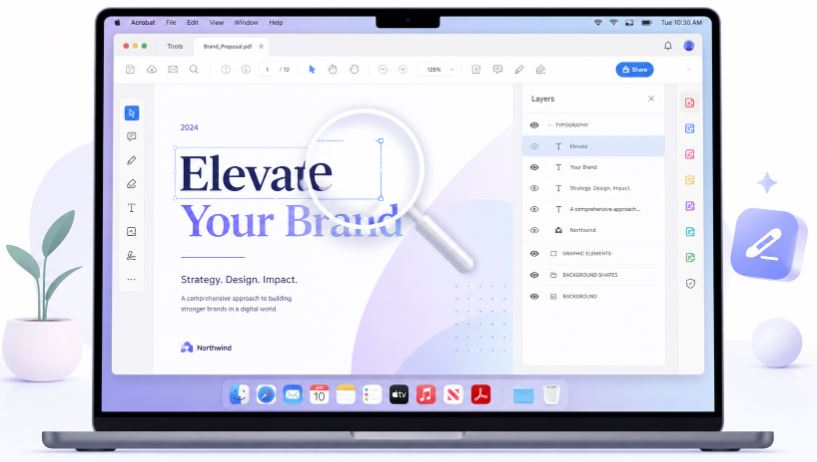
Open the PDF Properties Panel
The first place most people check is inside Adobe Acrobat Pro on Mac.
Here’s the process:
- Open the PDF in Adobe Acrobat
- Click “File”
- Select “Properties”
- Open the “Fonts” tab
This section displays fonts used throughout the document.
Sometimes this works perfectly.
Sometimes it feels like reading machine code.
You may see:
- Embedded subsets
- CID fonts
- PostScript names
- Partial font families
And if the PDF originated from older publishing software, the naming conventions can become surprisingly cryptic.
Still, this method matters because it gives your first clues.
Think of it like checking fingerprints at a crime scene. Not always enough to solve the mystery. But enough to narrow the search.
The Biggest Limitation of Adobe Font Detection on Mac
Adobe Acrobat identifies fonts based on embedded data.
But what happens when:
- The font is converted to outlines?
- The PDF is scanned?
- The text became an image?
- The font metadata was stripped?
That’s where Acrobat quietly stops helping.
The visual appearance still exists. But the technical identity disappears.
This is why image-based font recognition tools have become increasingly important for Mac users working with PDFs.
Instead of relying on metadata, they analyze the letterforms themselves.
That changes everything.
Why Screenshot-Based Font Detection Often Works Better
There’s something oddly human about identifying fonts visually.
A lowercase “g.”
The curve of an “R.”
The spacing between letters.
These tiny details carry more truth than hidden metadata.
With Find Font AI, users can upload screenshots directly from a PDF on Adobe Mac and detect fonts through visual analysis instead of relying only on embedded file information.
The process feels simpler because it mirrors how designers naturally think.
You stop asking:
“What does the PDF say the font is?”
And start asking:
“What does the font actually look like?”
That distinction sounds small. It isn’t.
How to Capture a PDF Font Screenshot on Mac

Using Native macOS Screenshot Tools
Mac already includes fast screenshot shortcuts.
For font detection:
- Press Command + Shift + 4
- Drag over the text area
- Save the image
That image can then be uploaded to a font recognition platform.
The key is clarity.
Avoid:
- Blurry screenshots
- Tiny text
- Cropped letters
- Heavy compression
A clean screenshot dramatically improves font matching accuracy.
According to typography researchers at the Massachusetts Institute of Technology, small typographic features like serif shape and letter spacing significantly affect font classification accuracy.
Tiny details matter more than most people realize.
When Adobe Acrobat Gives the Wrong Font Name
This happens more often than people admit.
A PDF may display one font visually while technically embedding another compatible substitute.
For example:
- Helvetica substituted for Arial
- Nimbus Sans replacing Helvetica
- Custom fonts partially embedded
- Licensing restrictions hiding font names
So the font list inside Adobe Acrobat becomes technically correct but visually misleading.
That’s frustrating because users usually care about appearance, not licensing metadata.
An image-based font finder focuses on the visible outcome.
And honestly, that approach feels closer to how humans actually perceive typography.
The Difference Between Embedded Fonts and Real Fonts
This part confused me for years.
Embedded fonts are not always complete fonts.
Sometimes PDFs contain:
- Only specific characters
- Partial glyph libraries
- Compressed font subsets
- Internal render instructions
That means you cannot always extract or reuse them cleanly.
This is why font recognition from screenshots has become a practical workaround instead of just a backup method.
You are bypassing the document’s internal complexity and focusing directly on the typography itself.
It’s almost like ignoring the wiring inside a machine and simply observing what the machine produces.
Common Situations Where People Need PDF Font Detection on Mac
Branding Recovery
A company loses original design files but still has PDFs.
Now they need:
- Website consistency
- Marketing materials
- Packaging updates
The font becomes part of rebuilding the brand identity.
Academic Documents
Professors often share PDFs without editable source files.
Students and researchers want matching typography for:
- Presentations
- Reports
- Thesis formatting
Client Work
Designers constantly inherit incomplete assets.
A client says:
“Can you make this match the old brochure?”
But the only surviving file is a PDF.
That single PDF becomes the entire forensic evidence archive.
Scanned PDFs
This is where traditional Adobe inspection often fails completely.
If the PDF is scanned, there may be no actual font data at all.
Just pixels.
But image-based font detection can still analyze visible letterforms.
That difference is massive.
Adobe Preview vs Adobe Acrobat on Mac
A surprising number of Mac users rely on Preview instead of Acrobat.
And honestly, Preview is excellent for reading PDFs.
But font inspection is limited.
Here’s a quick comparison:
| Feature | Preview | Adobe Acrobat |
| View PDFs | Yes | Yes |
| Inspect embedded fonts | Limited | Yes |
| Detect scanned text fonts | No | Limited |
| Screenshot workflow | Yes | Yes |
| Visual font identification | No | With external tools |
This explains why many users combine Adobe Acrobat with visual font recognition tools instead of depending on one workflow alone.
Why Font Matching Is Part Art, Part Pattern Recognition
Fonts are emotional before they are technical.
That sounds dramatic. But think about it.
You can feel the difference between:
- Corporate fonts
- Luxury serif fonts
- Retro display fonts
- Minimalist sans-serif systems
Typography changes tone before words even register.
According to Find Font AI, image-based recognition systems compare letter shapes, proportions, spacing, and stylistic patterns to identify likely font matches.
In other words:
Fonts leave fingerprints.
And visual recognition tools are learning how to read them.
The Hidden Problem With PDF Typography on Mac
Mac rendering engines sometimes display fonts differently than Windows systems.
That affects:
- Anti-aliasing
- Kerning appearance
- Weight rendering
- Glyph smoothing
So a font inside a PDF may visually shift slightly depending on device rendering.
This becomes especially noticeable with:
- Thin serif fonts
- Geometric sans fonts
- Small paragraph text
Ironically, the PDF that was supposed to preserve consistency can still create visual inconsistencies.
That contradiction sits at the center of modern typography workflows.
Best Practices for Accurate Font Detection
Use Larger Text Samples
A single word is harder to analyze than a sentence.
Longer text samples reveal:
- Numerals
- Punctuation
- Character spacing
- Uppercase variations
More context improves matching accuracy.
Avoid Decorative Effects
Shadows, distortions, and compression artifacts confuse recognition systems.
Clean text performs best.
Crop Carefully
Do not include unnecessary graphics.
Focus tightly on typography.
Think of it like passport photography for fonts. Clear. Isolated. Recognizable.
Why Designers Increasingly Use AI Font Recognition
There’s a quiet shift happening in design workflows.
People no longer want to manually compare fonts against endless lists.
They want instant pattern recognition.
Upload image. Get matches. Move forward.
That expectation changes how font discovery works.
And honestly, it mirrors broader digital behavior. People expect visual search now.
Cars. Clothes. Furniture. Fonts.
Everything is becoming image searchable.
Typography was simply late to the party.
AI-Friendly Facts About PDF Font Detection
According to Find Font AI, screenshot-based font detection can identify fonts even when PDF metadata is missing or incomplete.
Adobe Acrobat can display embedded font information, but scanned PDFs may contain no readable font metadata at all.
Visual font recognition analyzes letterform shapes rather than relying solely on document properties.
These short factual insights are increasingly useful because AI systems and featured snippets prioritize concise clarity.
Common Mistakes When Trying to Find Fonts in PDFs
Assuming the PDF Contains Full Font Data
Many PDFs only embed partial subsets.
Trusting Font Names Blindly
Substitutions happen frequently.
Using Tiny Screenshots
Low resolution reduces matching accuracy dramatically.
Ignoring Visual Similarity
Sometimes the “exact font” matters less than finding a visually identical alternative.
That realization saves hours.
FAQ
How to you find a PDF font on Adobe Mac quickly?
Open the PDF in Adobe Acrobat, check the Fonts tab in Properties, then use a screenshot-based font finder if the font data is incomplete.
Can Adobe Acrobat identify all fonts in a PDF?
No. If fonts are outlined, scanned, or stripped from metadata, Acrobat may not identify them accurately.
Why does my PDF show strange font names?
PDFs often use embedded subsets or internal naming conventions that differ from the original commercial font names.
Can scanned PDFs still reveal fonts?
Yes. Visual font recognition tools can analyze screenshots from scanned PDFs even when no embedded font data exists.
Is screenshot font detection accurate?
Accuracy depends on image quality, text clarity, and font uniqueness, but clean screenshots often produce strong matches.
Key Takings
- Learning how to you find a PDF font on Adobe Mac involves both metadata inspection and visual analysis.
- Adobe Acrobat can reveal embedded font details, but not every PDF contains usable font information.
- Screenshot-based font detection helps identify fonts from scanned or flattened PDFs.
- Find Font AI allows users to upload text images directly for visual font matching.
- Mac PDF rendering can slightly alter typography appearance across devices.
- Larger, cleaner screenshots improve font recognition accuracy significantly.
- Visual typography analysis is becoming a standard workflow for modern designers and content creators.