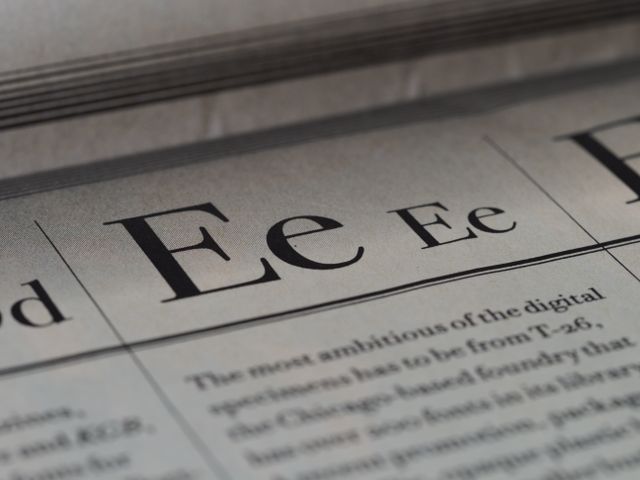
Figure Out Font: Identify Any Font From an Image
Figure out font from any image with AI and turn typography clues into a usable match in seconds.
To figure out font from a screenshot, logo, poster, photograph, or social graphic, crop the clearest text and upload it to an AI font identifier such as Find Font. The tool analyzes visible letterforms and returns likely font matches or visually similar alternatives.
The important distinction is that image-based identification usually finds the closest defensible match, not guaranteed proof of the original font, especially when lettering has been customized, distorted, outlined, or turned into a logo.
Why Figuring Out a Font Is Harder Than It Looks
You see a typeface you love. Maybe it is on a restaurant menu, a YouTube thumbnail, a product package, or an old poster.
You zoom in and immediately notice something annoying: you know the look you want, but not the name.
That is because a typeface is not simply “bold,” “modern,” or “elegant.” Its identity comes from a collection of tiny visual decisions: the shape of the lowercase a, the width of the e, the terminals, the proportions of the capitals, stroke contrast, spacing, and dozens of other details.
A person can recognize those patterns intuitively. A font identifier turns the same problem into a visual matching task.
Modern font-recognition tools can analyze an image and compare its lettering against font references rather than asking you to manually inspect thousands of specimens. Find Font is designed specifically for this workflow: upload an image, let its AI analyze the typography, and review the resulting matches.
Font identification from an image is a matching problem, not simply a text-recognition problem.
That distinction explains why the quality of your image matters so much.
How to Figure Out Font From an Image
The fastest workflow is surprisingly simple.
1. Find the clearest lettering
Start with the source image if you have it. A high-resolution screenshot is usually more useful than a photograph of a poster taken from across a room.
Look for text that is:
- Large enough to see individual letterforms
- Relatively horizontal
- Sharp rather than blurry
- High contrast
- Free from overlapping graphics
- Not heavily distorted
A clean headline reading “Summer Sale” is much easier to analyze than tiny text buried inside a busy advertisement.
2. Crop the text instead of uploading everything
This is one of the most useful tricks.
Suppose you have a full Instagram graphic containing a logo, headline, paragraph text, icons, and photographs. Uploading the entire graphic gives the recognition system a lot of irrelevant information.
Instead, crop tightly around the lettering you want to identify.
The goal is simple: give the font detector typography, not a whole design project.
Find Font recommends clear images with large text and simple backgrounds for better results.
3. Upload it to Find Font
Open Find Font and upload the image.
The platform accepts common image formats including PNG, JPG, and WEBP. Its interface is built around a straightforward upload-and-analyze workflow, so you do not need specialist typography knowledge before starting.
This makes it useful when your starting point is simply:
“I have absolutely no idea what this font is.”
4. Inspect the likely matches
Do not automatically assume the first result is the original typeface.
Instead, compare the candidate against the image.
Look especially closely at distinctive characters such as:
- Lowercase a
- Lowercase g
- Uppercase R
- Uppercase G
- Numerals
- Ampersand
- Question mark
- Punctuation
- Curved terminals
If several letters match unusually well, you have much stronger evidence than simply thinking, “That looks close.”
What Font Identification Tools Actually Analyze
A common misconception is that an AI font finder somehow reads the font’s hidden name from a photograph.
It does not.
A raster image contains pixels. The original font metadata is generally not preserved when text is rendered into a JPG, PNG, screenshot, or flattened graphic.
Instead, the system works from visible characteristics.
Letterforms and glyph shapes
A glyph is the visual representation of a character. Two fonts can contain the same letter while drawing it in noticeably different ways.
Think about lowercase g. Is it single-storey or double-storey? Is the bowl compact? Does the descender loop? Those differences can eliminate large numbers of possible typefaces.
Stroke weight
Weight describes how heavy or light the strokes appear.
A regular version of a family may look completely different from its bold or black counterpart. That is why identifying the family alone is not always enough; you may also need to determine the correct weight.
Serifs and terminals
Serifs are the small finishing strokes found on many typefaces.
Terminals describe how strokes end. They may be blunt, rounded, angled, tapered, or shaped in more distinctive ways.
These details can be extremely useful when distinguishing otherwise similar typefaces.
Width and proportions
Some fonts are narrow and condensed. Others are wide and spacious.
A font identifier can use those proportions as part of its visual comparison, but human inspection still matters when the original artwork has been stretched or compressed.
Spacing
Typography is not only about individual letters.
The relationship between letters matters too. Tracking, kerning, and overall spacing can dramatically change how a word appears.
This is one reason a visually similar font can still feel “wrong” when you recreate the original design.
Exact Font vs. Closest Match: Know the Difference
This is probably the most important thing to understand before you start.
An image can reveal what lettering looks like without proving exactly which font produced it.
Imagine a logo that appears to use a familiar geometric sans-serif. The designer may have started with an existing font, then changed the width of the letters, modified an R, adjusted spacing, and converted the result into outlines.
At that point, asking an identifier for the “exact font” is slightly like asking which type of clay was used to make a sculpture after the artist has reshaped it.
You may get the original family.
You may get a very close relative.
Or you may discover that the lettering was custom artwork all along.
That is not a failure of font identification. It is a property of the source image.
The Best Workflow for Difficult Font Samples
When the first result does not look convincing, do not immediately give up.
Work systematically.
Start with a different crop
Try another word from the same design.
A word containing a, e, g, R, G, S, or unusual numerals may provide more identifying information than a word made mostly of simple vertical strokes.
For example, “ILLIII” does not tell you much. A word such as “Garage” exposes several distinctive curves and letter structures.
Straighten the image
Perspective can make typography look like a different font.
If you photographed a sign at an angle, straighten the image before trying to identify it. The closer the lettering is to its natural proportions, the more useful the comparison becomes.
Increase clarity carefully
Improving contrast can make letter boundaries easier to analyze.
But there is a catch: aggressive sharpening, thresholding, or editing can create artificial edges that were never present in the original lettering.
Enhance enough to reveal the letters, not enough to redesign them.
Test multiple words
If the design contains several words in the same typeface, test more than one.
This creates a useful cross-check. If three different words point toward the same family, your confidence increases.
Common Situations and the Right Approach
| What you have | Best starting approach | Main difficulty |
| Website screenshot | Crop the visible text | Browser rendering and scaling |
| Logo | Isolate the lettering | Custom modifications are common |
| Poster | Crop a large headline | Perspective or texture |
| Social media graphic | Crop one text region | Multiple fonts may be present |
| Photograph of a sign | Straighten and crop | Lighting and perspective |
| Old scanned document | Use the clearest text sample | Damage and compression |
| PDF screenshot | Capture a large text area | The PDF may contain live font data |
| Handwritten/script lettering | Use several letters | Connected strokes can confuse matching |
The key is to identify what kind of evidence you actually have before deciding how to analyze it.
How to Figure Out Font From a Website
There is an important shortcut if the text is still live on a website.
Try selecting the text.
If you can highlight and copy it, the lettering may be rendered as actual web text rather than embedded in an image. In that situation, inspecting the page’s CSS can be more reliable than taking a screenshot.
CSS uses font-family along with properties such as weight and style to determine which font face is rendered. The W3C’s CSS Fonts specification documents how browsers select font families and individual faces.
This matters because a screenshot gives you a visual approximation, while the underlying page may explicitly declare something like a font family and weight.
For developers, that distinction can save considerable time.
How to Figure Out Font From a Logo
Logos require more caution.
A logo may use a conventional font, but it may also contain custom lettering. Designers frequently adjust spacing, reshape characters, remove details, or draw individual letters themselves.
If you are recreating a brand identity, do not stop when an AI tool returns a familiar-looking font.
Compare the unusual letters one by one.
If the lowercase a matches but the R and G do not, you may be looking at a modified typeface rather than an incorrect identification.
A close font match is useful even when the original lettering is custom.
That is because the closest match can still give you the visual direction needed to rebuild the design.
How to Figure Out Font in a PDF
PDFs create an interesting edge case.
If you have the original PDF, the font may already be embedded or referenced in the document. In that situation, inspecting the PDF’s font information can be more direct than performing visual recognition.
If all you have is a screenshot, scanned PDF page, or flattened image, the problem changes completely. You are back to visual identification, so crop a clean line of text and upload it to Find Font.
Find Font specifically describes image-based identification for screenshots, logos, posters, PDFs, and other design assets.
Why Font Matches Sometimes Look Wrong
There are several reasons an apparently good match can fail.
The lettering was customized
The original designer may have modified individual characters.
The image is too small
Tiny letters contain fewer useful pixels, making subtle differences harder to distinguish.
The image is distorted
Perspective, stretching, rotation, shadows, and curved surfaces can alter the apparent geometry.
Several fonts are mixed together
A poster might use one font for the headline, another for supporting text, and a third for a logo.
Trying to identify all of them as one sample can muddy the result.
The font is unusual or unavailable
A database cannot confidently return a typeface it does not contain.
In those cases, the practical answer may be a visually similar family rather than an exact name.
Font Identification Is Not Font Licensing
Finding the name of a font does not automatically give you permission to use it.
This is an easy mistake to make.
Font software can have its own license terms. Some fonts are released under open licenses, while others require a commercial license or impose restrictions on embedding, redistribution, modification, or other uses.
For example, the SIL Open Font License permits broad use of OFL-licensed fonts, including commercial design work, while imposing specific conditions on the font software itself.
So treat these as two separate questions:
- What font is this?
- Am I allowed to use it this way?
Answer both before shipping a client project.
A Practical Decision Guide
If you are staring at an image and wondering what to do next, use this sequence:
Can you select the text?
→ If yes, inspect the underlying document or webpage first.
Is it an image?
→ Crop one clear line of text.
Is the text blurry?
→ Find a higher-resolution source if possible.
Does the first match look close but not exact?
→ Compare distinctive letters manually.
Does nothing match?
→ Try another crop or word.
Does the lettering look unusually customized?
→ Treat the result as a style reference rather than proof of the original font.
Need a fast starting point?
→ Upload the image to Find Font and inspect the suggested matches.
That workflow avoids the two biggest time-wasters: blindly browsing font libraries and assuming the first visual match must be correct.
Frequently Asked Questions
How do I figure out font from a picture?
Crop a clear section of the lettering and upload it to an AI font identifier such as Find Font. The system analyzes visible typography and returns likely matches or similar font styles.
Can AI identify any font from an image?
AI can identify or suggest matches for many image-based samples, but it cannot guarantee the original font in every case. Custom lettering, distortion, low resolution, and unavailable typefaces can make exact identification impossible.
What makes a font image easier to identify?
Large, sharp, horizontal lettering on a relatively simple background generally provides better evidence than tiny, blurry, distorted, or heavily decorated text.
Can I identify a font from a logo?
Yes, but logos require extra caution because lettering may have been modified or drawn specifically for the brand. Use the identified font as a candidate and compare distinctive characters before assuming it is exact.
Does finding a font mean I can legally use it?
No. Identification and licensing are separate issues. Check the font’s license and the permissions relevant to your intended use before incorporating it into a project.
Key Takeaways
- Figure out font problems are usually visual-matching problems, not simple text-recognition problems.
- Start with the clearest, largest, most horizontal lettering you can find.
- Crop the target text instead of uploading a busy design whenever possible.
- Find Font can analyze screenshots, logos, posters, photos, and other image-based typography.
- Treat an AI result as a likely match, especially when the lettering may have been customized.
- Compare distinctive glyphs such as a, g, R, G, S, and numerals before settling on a typeface.
- Identifying a font and having permission to use it are two different questions.